Text replacement
Text replacement changes text on a website page for a selected audience. For example, a visitor with the required attribute will see “Start a free trial” instead of “Try it”. It requires an installed widget and the Flowtomate extension for Chrome. The extension currently requires manual installation: obtain its build from your Flowtomate administrator.
Create a page and select text
Open the required website page over HTTPS and select the account, project, and “Text replacement” in the extension's side panel. The extension uses the active tab's URL. In “What to replace”, choose “Text on the page” or “Placeholder in an empty field”, then click “Select element” and select the text on the page. Enter the new text. The extension remembers the original text and the selected element.
If the page has not been created yet, open “Text replacement” in the app, click “Create page”, enter the “Exact page address”, and click “Create draft”. Then open the page in the extension and add a replacement. In the app, the page has “Page”, “Sets and audiences”, and “Review and publish” tabs.
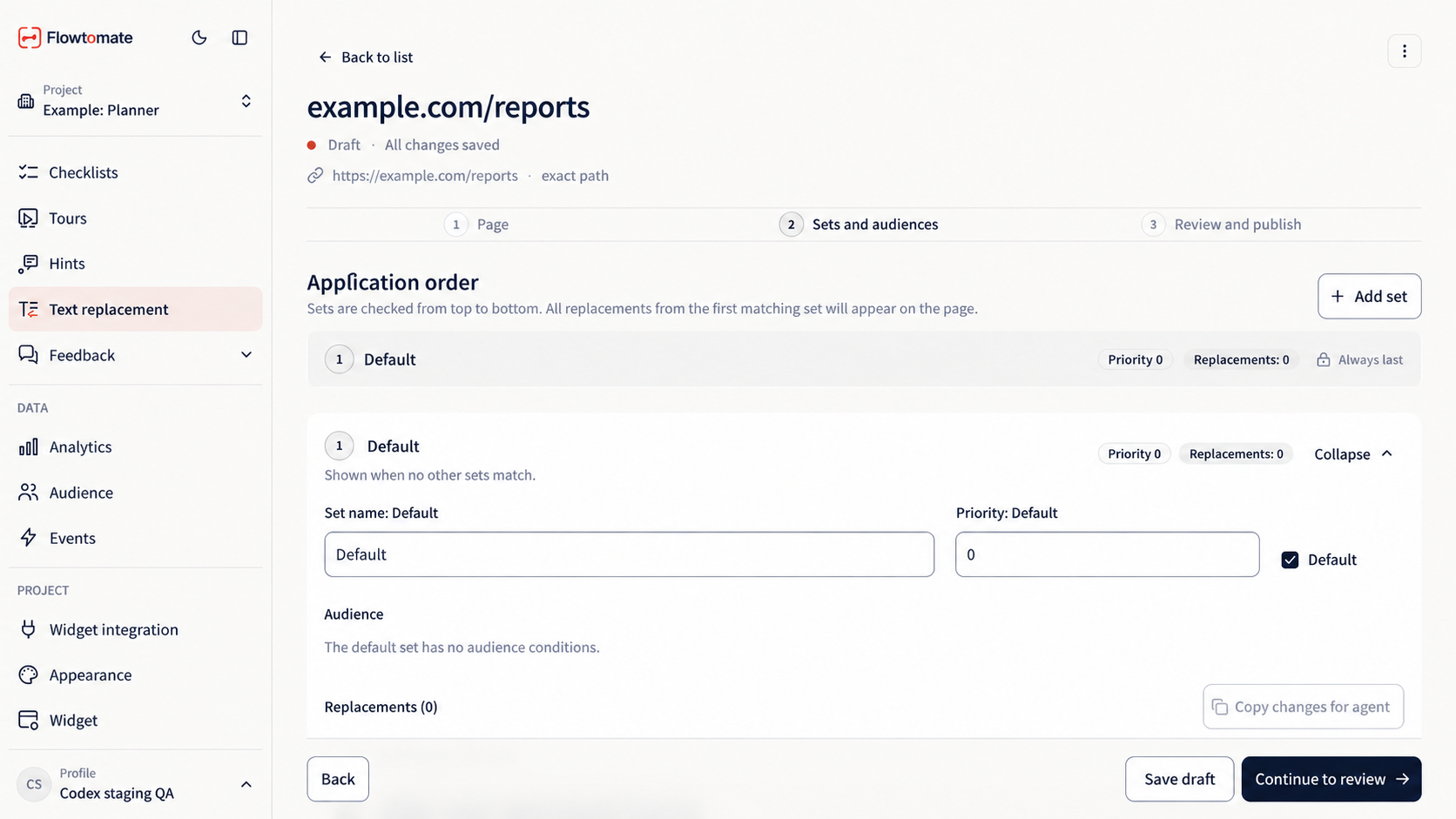
An example page has been created, but its “Default” set is still empty. No text is replaced on the website until you select text in the extension.
On the “Page” tab, enter a name for your team, the website URL, and the path. “Exact path” limits replacement to one page; “Path prefix” also includes child pages. Parameters after ? and the part after # do not affect page matching. The website must use HTTPS; a local development page can use HTTP.
Check sets and the audience
On the “Sets and audiences” tab, create replacement sets and give each a “Priority”. Add conditions under “Audience” or mark one set as “Default”. The default set is applied last, if no others match. The widget checks sets from top to bottom and applies all replacements from the first matching set. It does not mix sets or randomly divide visitors into variants.
Select a set in the extension, click “Show replacements”, and check the result in your tab. “Close preview” removes the replacement; if the website has already changed the text itself, the extension will not overwrite that change. Preview does not publish the text. Click “Save draft” in the extension or app, then open “Review and publish” in the app. Resolve any errors and click “Publish”. Only the published version is available to visitors.
If you edit an already published page, saving a draft does not change the text on the website. “Disable” stops serving replacements. In “Publication history”, you can click “Restore version”: Flowtomate creates a new active version from an older one and leaves the draft as it is. “Copy changes for agent” copies instructions from the current draft; it does not save or publish the draft.
If a replacement does not appear
Check the widget's project, publication, URL, and audience conditions. The widget changes text only when the selector matches one element and its current text matches the saved original text. If the website has already changed the text, select the element again in the extension. Replacements work with a visible text node or a field's placeholder. They do not change HTML, links, page code, or aria-label; elements inside the website's iframes and Shadow DOM cannot be selected.
If another editor changed the draft before you did, first download or export your changes, then load the server version. Loading it replaces your open draft.
Related articles
- Integration — install the widget on your website.
- Audience — send visitor attributes for display conditions.
- Troubleshooting — check the conditions if the text has not changed.